
How to Restart an Android Phone (Samsung, Pixel and More)
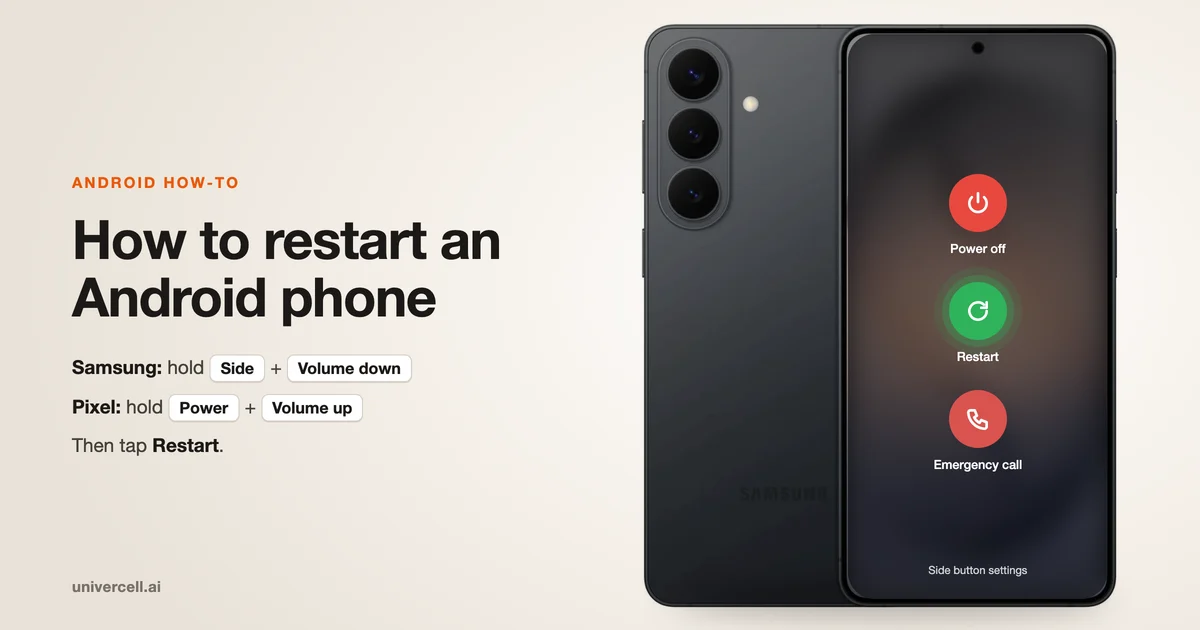
To restart an Android phone, press and hold the power button until the menu appears, then tap Restart. On a Samsung Galaxy, hold Side + Volume down instead. On a Google Pixel 6 or later, hold Power + Volume up. If the screen is frozen, hold the same buttons for about 10 seconds on a Samsung, or up to 60 seconds on a Pixel, until the phone reboots.
How to restart an Android phone in 3 steps
- Press and hold the power (or side) button until the power menu appears.
- Tap Restart. Some phones label it Reboot, and a few ask you to confirm.
- Wait about a minute while the phone shuts down and starts again, then enter your PIN.
A restart keeps your photos, apps and settings. It only closes running apps and clears temporary memory, which is why it is the first thing to try when your phone lags, an app freezes or Wi-Fi drops.
The buttons differ by brand, so use the row that matches your phone:
| Phone | Open the restart menu | Force restart (frozen screen) |
|---|---|---|
| Samsung Galaxy | Hold Side + Volume down for a few seconds, then tap Restart | Hold Volume down + Side for about 10 seconds |
| Google Pixel 6 or later | Hold Power + Volume up for a few seconds, then tap Restart | Hold Power for up to 60 seconds until the Google logo appears |
| Google Pixel 5a or earlier | Hold Power for about 30 seconds | Hold Power for up to 60 seconds |
| Motorola and other brands | Varies by model, so check the maker's guide | Varies by model |
These steps match Samsung's official restart guide and Google's Pixel power on and off guide. If your phone keeps misbehaving after a restart, our Android phone repair team can take a look.
How to restart or reboot a Samsung phone
Samsung Galaxy phones give you four ways to restart, so you can pick whichever suits the situation:
- Side + Volume down: hold both for a few seconds, tap Restart when the power menu opens, then tap Restart again to confirm.
- Quick Settings: swipe down from the top of the screen, tap the power icon, then choose Restart.
- Voice command: say "Hi, Bixby, restart my phone" and confirm when prompted.
- Force restart: if the screen is frozen, hold Volume down + Side for about 10 seconds. The screen goes black, then the Samsung logo appears.
Tip: let your Galaxy restart itself. Go to Settings > Device care > Auto optimization > Auto restart. You can choose Restart when needed or Restart on schedule and pick a day and time, so you never have to remember. Details are on Samsung's restart page.
Thinking of replacing an older Galaxy instead of fixing it? See what you could get when you sell your Samsung phone.
How to restart a Google Pixel
On a Pixel 6 or later (including the Pixel Fold), hold Power + Volume up for a few seconds, then tap Restart. On a Pixel 5a or earlier, hold the Power button for about 30 seconds until the phone restarts.
If you would rather a long press of the power button open the menu, go to Settings > System > Gestures > Press and hold the power button and choose Power menu.
If your Pixel is frozen, hold the Power button for up to 60 seconds and release it when the Google logo appears.
Use safe mode to find a problem app. If a downloaded app is making your Pixel crash or restart, safe mode loads the phone without it:
- On a Pixel 6 or later, hold Power + Volume up for a few seconds.
- Tap and hold Power off or Restart, then tap OK.
- Wait for "Safe mode" to appear at the bottom of the screen.
- To leave safe mode, hold Power + Volume up and tap Restart.
Safe mode removes some Home screen widgets and turns on Airplane mode, so switch Airplane mode off if you need Wi-Fi or calls. Google explains every step in its safe mode guide.
Restarting without a power button, on a locked phone or on other devices
- No working power button: on a Samsung, open Quick Settings and tap the power icon, or use the Bixby voice command. You can also schedule restarts under Auto restart, so the phone reboots without any button presses. If the button is physically stuck or dead, that is a hardware fault, and our phone repair team can inspect it.
- Locked phone: the power menu is usually reachable from the lock screen, but expect to enter your PIN, pattern or password after the phone starts again.
- Samsung Galaxy Tab: Samsung describes the same restart methods for Galaxy phones and tablets, so you can use the button combination and Quick Settings steps above.
- Foldables: a Galaxy Z Fold or Flip follows the Samsung method, and a Pixel Fold follows the Pixel method.
- Motorola: the buttons vary by model, so follow Motorola's force restart guide for your phone.
Restart vs reboot vs hard reset vs factory reset
Restart and reboot mean the same thing, and neither deletes your data. Only a factory reset erases everything.
| Action | What it does | Erases your data? | Use it when |
|---|---|---|---|
| Restart (reboot) | Shuts the phone down and starts it again | No | Lag, app crashes, Wi-Fi or Bluetooth glitches |
| Force restart | Reboots using a button combination when the screen won't respond | No | The phone is frozen |
| Shut down | Turns the phone off until you power it on | No | Storing or travelling with the phone |
| Factory reset (often called a hard reset) | Wipes the phone and restores factory settings | Yes | Selling the phone, or problems that survive a restart |
Online, "hard reset" usually means a factory reset, although some guides use it for a force restart. Check which one a guide means before you follow it.
To factory reset a Samsung phone, back up your photos and files first, then go to Settings > General management > Reset > Factory data reset > Reset > Delete all. If a Google account was on the phone, you may need to verify it after the reset, so keep your login details handy. Samsung covers this in its factory reset guide.
Before you wipe an old phone for sale, check what it is worth. You can sell your phone for cash and put the money toward your next device.
How often should you restart your phone?
Android has no official schedule, so treat this as practical guidance rather than a rule. A restart once a week is a sensible habit for most people, and you should restart straight away when something feels off.
Restart your phone when:
- an app freezes or keeps crashing
- Wi-Fi, Bluetooth or mobile data stops connecting
- the battery drains faster than usual
- the phone feels slow after you install several apps
Samsung owners can skip the routine entirely by turning on Auto restart in Device care. If the same problem returns within a day or two of restarting, the cause is probably not temporary memory, and it is time to look at updates, problem apps or hardware.
When a restart doesn't fix the problem
If your Android phone still freezes, reboots on its own or won't start after a restart, work through these steps in order:
- Install any pending system and app updates.
- Boot into safe mode to see whether a downloaded app is the cause.
- Back up your data, then try a factory reset as a last resort.
When the problem survives all three, the cause is usually hardware: an ageing battery, a damaged charging port, a faulty button or liquid damage. UniverCell's Android phone repair covers screen and battery replacement, charging port repair and cleaning, and water damage diagnostics for Samsung, Google Pixel, OnePlus and Huawei phones, with other brands checked through the repair flow.
You don't have to guess at the cost. Choose your device on the repair pricing page to see upfront pricing before you book, or visit a UniverCell store. If repairing an old phone no longer makes sense, you can also sell it for cash toward an upgrade.
Sources
- Different ways to restart your Samsung Galaxy, Samsung Canada
- Perform a factory reset on your Galaxy phone or tablet, Samsung US
- Turn your Pixel phone on and off, Pixel Phone Help
- Find problem apps by rebooting to safe mode, Pixel Phone Help
- Android phone repair, UniverCell